풍선 지키기
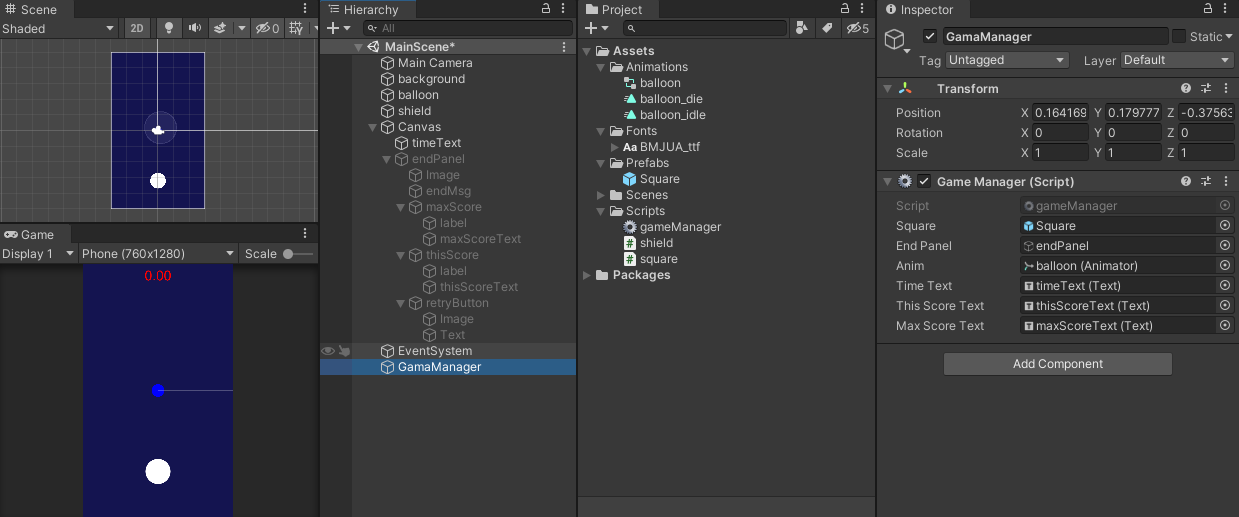
상단의 무작위 위치로부터 다수의 네모가 아래로 떨어진다.
파란 원(방패)은 마우스 포인터를 따라 움직인다.
최대한 오랜 시간 동안 방패를 이용해 떨어지는 네모가 하단 중앙의 흰 원에 닿지 않도록 한다.
방패의 코드
using System.Collections;
using System.Collections.Generic;
using UnityEngine;

public class shield : MonoBehaviour
{
    void Start()
    {

    }
    void Update()
    {
        Vector3 mousePos = Camera.main.ScreenToWorldPoint(Input.mousePosition);
        transform.position = new Vector3(mousePos.x, mousePos.y, 0);
    }
}
네모의 코드
using System.Collections;
using System.Collections.Generic;
using UnityEngine;

public class square : MonoBehaviour
{
    void Start()
    {
        float x = Random.Range(-3.0f, 3.0f);
        float y = Random.Range(3.0f, 5.0f);

        transform.position = new Vector3(x, y, 0);

        float size = Random.Range(0.5f, 1.5f);

        transform.localScale = new Vector3(size, size, 0);
    }

    void Update()
    {
        if (transform.position.y < -5)
        {
            Destroy(gameObject);
        }
    }

    private void OnCollisionEnter2D(Collision2D collision)
    {
        if (collision.gameObject.tag == "balloon")
        {
            gameManager.I.gameOver();
        }
    }
}
GM의 코드
using System.Collections;
using System.Collections.Generic;
using UnityEngine;
using UnityEngine.UI;
using UnityEngine.SceneManagement;


public class gameManager : MonoBehaviour
{
    public static gameManager I;
    public GameObject square;
    public GameObject endPanel;
    public Animator anim;
    public Text timeText;
    public Text thisScoreText;
    public Text maxScoreText;
    float alive = 0.0f;
    bool isRunning = true;

    private void Awake()
    {
        I = this;
    }

    void Start()
    {
        Time.timeScale = 1.0f;
        InvokeRepeating("makeSquare", 1.0f, 0.5f);
    }

    void Update()
    {
        if (isRunning)
        {
            alive += Time.deltaTime;
            timeText.text = alive.ToString("N2");
        }
    }

    void makeSquare()
    {
        Instantiate(square);
    }

    public void gameOver()
    {
        isRunning = false;
        anim.SetBool("isDie", true);
        Invoke("timeStop", 0.5f);
        endPanel.SetActive(true);
        thisScoreText.text = alive.ToString("N2");

        if (PlayerPrefs.HasKey("bestscore") == false)
        {
            PlayerPrefs.SetFloat("bestscore", alive);
        }
        else
        {
            if (alive > PlayerPrefs.GetFloat("bestscore"))
            {
                PlayerPrefs.SetFloat("bestscore", alive);
            }
        }
        float maxScore = PlayerPrefs.GetFloat("bestscore");
        maxScoreText.text = maxScore.ToString("N2");
    }

    public void timeStop()
    {
        Time.timeScale = 0.0f;
    }

    public void retry()
    {
        SceneManager.LoadScene("MainScene");
    }
}
1. 마우스를 따라 움직이는 오브젝트
2. Update()함수의 시간 동기화
3. 최고 점수 기록 - PlayerPrefs
4. 애니메이션 전환-Animator Controller
1. 마우스를 따라 움직이는 오브젝트-ScreentoWorldPoint()
떨어지는 네모를 막기 위해서는 마우스를 이용해 방패의 위치를 조작해야 한다.
방패를 마우스포인터의 위치로 따라 움직이도록 방패의 코드를 작성한다.
 void Update()
    {
        Vector3 mousePos = Camera.main.ScreenToWorldPoint(Input.mousePosition);
        transform.position = new Vector3(mousePos.x, mousePos.y, 0);
    }
마우스의 위치가 카메라에 비치는 화면의 어디에 있는지 입력값을 받아, 해당 좌표로 위치를 할당한다.
2. Update()함수의 시간 동기화
void Update()
{
    alive += Time.deltaTime;
    timeText.text = alive.ToString("N2");
}

public void gameOver()
{
    thisScoreTxt.text = alive.ToString("N2");
    Invoke("timeStop", 0.0f);
}

public void timeStop()
{
    Time.timeScale = 0.0f;
}
위와 같이 gameOver함수의 코드를 작성하게 된다면 게임 실행 시 게임오버 직후에도 Update함수가 몇 프레임 정도 작동하는 경우가 있다. 이로 인해 Update함수에 의한 게임 오버 시간과 timeScale=0이 된 시간 사이에 약간의 차이가 발생한다.
이 차이를 개선하기 위해 isRunning변수를 추가해 게임이 끝나는 시점이 되면 Update함수에 의한 게임 시간의 경과를 멈추게 한다.
아래는 그 코드다.
bool isRunning = true;

void Update()
{
    if (isRunning)
    {
    	alive += Time.deltaTime;
    	timeText.text = alive.ToString("N2");
    }
}

public void gameOver()
{
    isRunning = false;
    thisScoreTxt.text = alive.ToString("N2");
    Invoke("timeStop", 0.0f);
}

public void timeStop()
{
    Time.timeScale = 0.0f;
}
gameOver함수가 실행되고 isRunning=false가 되면, Update함수의 내용은 더 이상 실행되지 않은 채로 gameOver함수를 진행시킬 수 있다.

3. 최고 점수 기록(데이터의 보관과 사용)
데이터 관리 클래스 중 하나인 PlayerPrefs클래스를 이용해 게임 실행에서 발생한 데이터를 저장(보관)하고, 사용한다.
데이터를 저장하는 방법은 Set변수형("지정할 변수의 이름", 변수값),
데이터를 저장하는 방법은 Get변수형("지정한 변수의 이름") 이다.
데이터의 저장 여부를 확인하는 방법은 HasKey("지정한 변수의 이름")이고(bool값이다),
저장된 데이터를 전부 지우는 방법은 DeleteAll()이다.
아래는 그 예시다.

4. 애니메이션 전환-Animator Controller
풍선이 네모에 닿았을 경우, 풍선이 다른 색으로 바뀌며 커지는 애니메이션을 balloon_die로 추가, 드래그하여 적용했다.
balloon Animator에서 풍선이 터지는 조건isDie를 생성했고, balloon_idle에서 balloon_die로 넘어가는 Transition을 생성했다. 이 Transition의 동작 조건은 isDie=true다.
Has Exit Time 옵션은 "이 애니메이션이 동작하는데 선딜레이 시간이 있는가?"를 묻는다.

gameOver함수에서 동작하는 함수다. 코드는 다음과 같다.
public class gameManager : MonoBehaviour
{
    public Animator anim;

    public void gameOver()
    {
        anim.SetBool("isDie", true);
    }
}
GM속성 뷰의 anim변수에 풍선 오브젝트의 애니메이터를 지정하면, balloon Animator에서 생성된 isDie조건을 설정할 수 있다.
위 학습에서 UI오브젝트로 Canvas, Text, Image를 썼다. 괜히 다른거 써보려다가 롤백을 몇번이나 했는지 모르겠다.
한번 작성한 계층 뷰의 오브젝트 서열을 임의로 막 바꾸면 상대적인 오브젝트 위치값이 바뀐다. 한번 작성할 때 확실하게 하고, 오브젝트의 위치가 어디인지 알아놓자.
추가하지 않는 내용
- UNITY에서 조작 가능한 오브젝트의 색상, 그림자, 폰트 등 디자인 설정은 일체 넣지 않았고, 앞으로도 가급적 작성하지 않을 것이다.
- Button속성 - Target Image을 이용한 버튼 오브젝트 컬러 틴트 생성
- balloon_idle, balloon_die 애니메이션의 적용에 대한 상세
안 써서 나중에 모르면 내탓이다.
'UNITY' 카테고리의 다른 글
| UNITY_20230802[카드 짝 맞추기] (0) | 2023.08.03 |
|---|---|
| UNITY_20230728[고양이밥줘서내쫓기] (0) | 2023.08.01 |
| UNITY_TIL최적화를 위한 규칙 (0) | 2023.07.31 |
| UNITY_20230727[빗물 모으기] (0) | 2023.07.27 |
| UNITY_20230727 (0) | 2023.07.27 |


